![logo-alt.svg]](https://www.igoclients.com/hubfs/logo-alt.svg)
Webhooks allow Keystone to automatically send real-time data to other systems whenever something happens in your account, like when an order is created, updated, or completed. Instead of manually exporting data or waiting for scheduled syncs, webhooks instantly push information to your connected tools, helping keep everything up to date and in sync. This is especially useful for integrating with CRMs, call centers, or custom workflows, so your team can take action faster and reduce manual work.
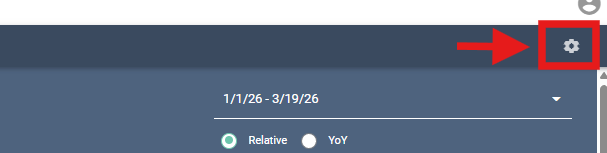
To set up a webhook in Keystone, click the Gear Icon in the top right-hand corner to access Settings.
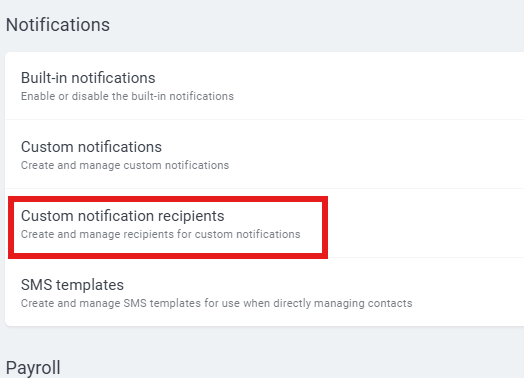
Scroll down to Notifications and select Custom Notification Recipients.
From there, click New Recipient
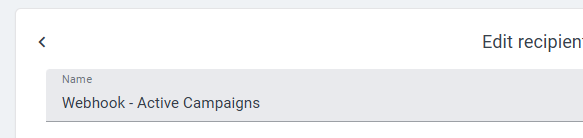
Enter a name for the webhook. If multiple webhooks will be used, it is recommended to include the name of the receiving system in the title for clarity.
Under Summary, change the recipient type from People on Orders to Webhook URL.
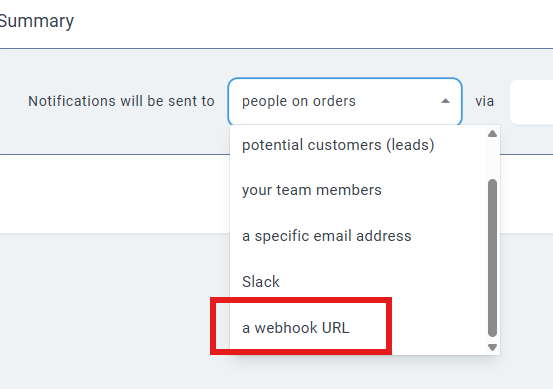
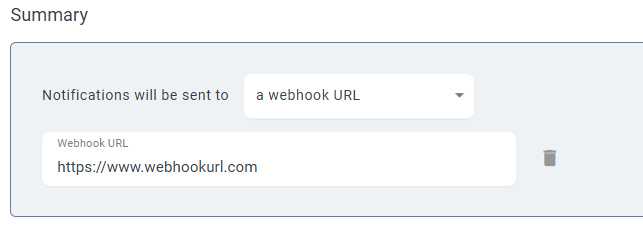
Enter the webhook URL provided by the third-party system you are integrating with. Once added, save the recipient and ensure it is marked as active.
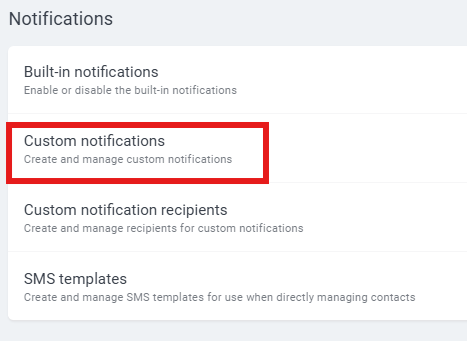
After creating the webhook recipient, return to Settings and navigate back to Notifications. Select Custom Notifications
Click New Notification.
Enter a name for the notification and choose the event that will trigger the webhook, such as when an order is submitted or when a report is sent.
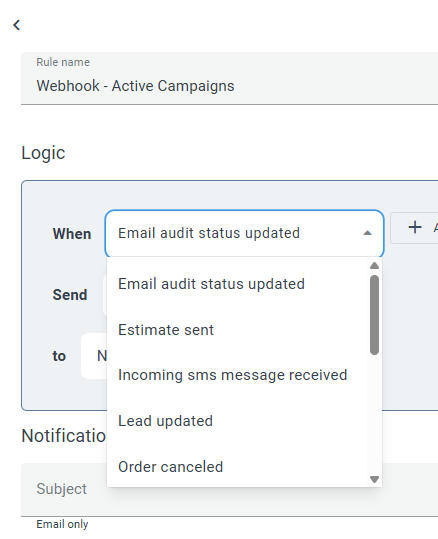
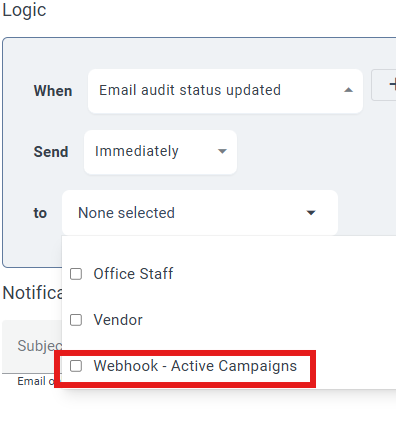
In the “to” section, select the webhook recipient that was created.
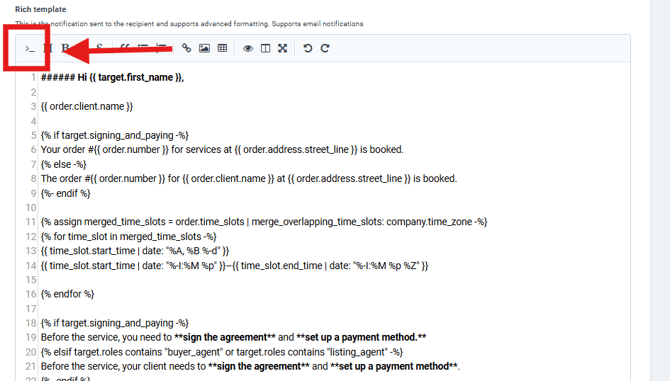
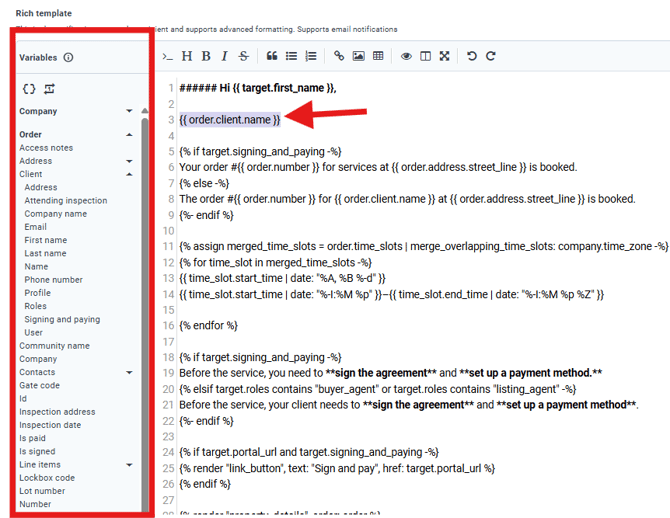
The data sent through the webhook is configured using variables. Within the template editor, use the variables panel to select the information you want to send. These variables allow Keystone to pass order details to the receiving system.
Wherever your cursor is placed, the selected variable will be inserted. Variables are grouped by type—such as order, client, appointment.
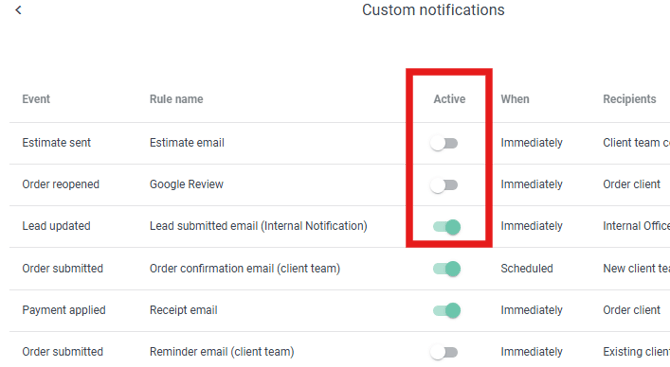
Once you're done, click Save Notification Rule and activate it by selecting Active on the notification list.
The notification will appear in your list as Inactive. Click the toggle switch to activate the notification.
Once complete, click Save to add the entry to the report.
If you need additional assistance, please submit a request through iGopher for support.