![logo-alt.svg]](https://www.igoclients.com/hubfs/logo-alt.svg)
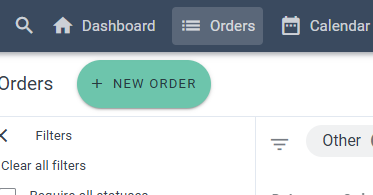
To manage signing and paying roles, start by going to Orders in the upper left-hand corner and either open an existing order or create a new one.
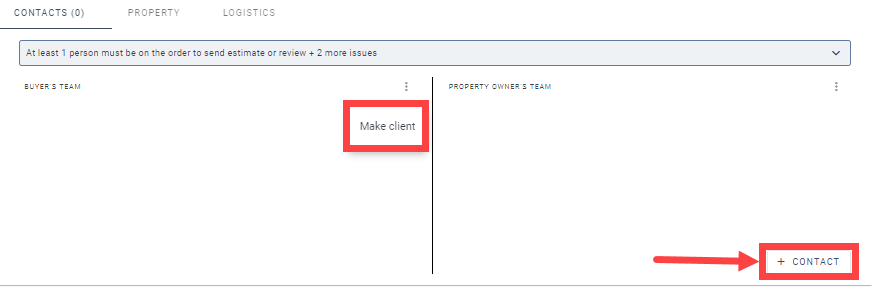
From there, click into the Contacts section. On the right-hand side, select Add Contact.
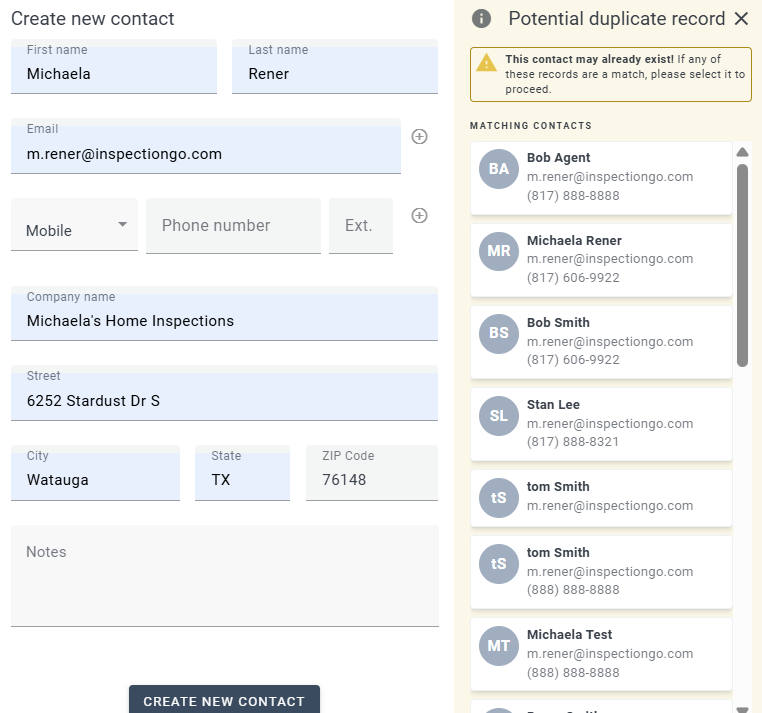
Begin typing a first name, last name, email, or phone number. As you type, matching contacts in your system will appear on the right-hand side so you can quickly select an existing contact instead of creating a duplicate.
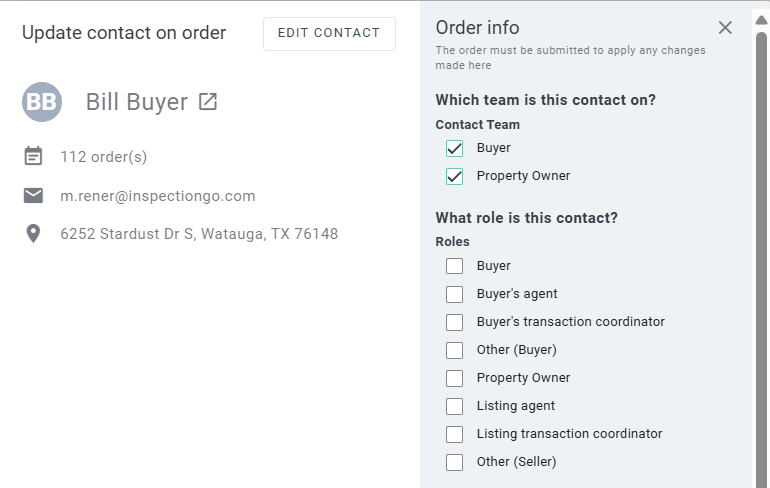
Once a contact is selected, assign them to either the Buyer Team or the Property Team. Based on that selection, you’ll then choose their role (for example: Buyer, Buyer’s Agent, Seller, or Listing Agent).
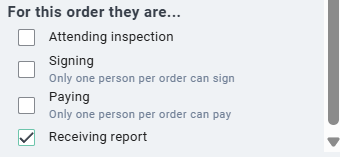
Towards the bottom of the contact setup, you’ll see options to mark whether the contact is Signing, Paying, or both.
- If a contact is marked as Signing, “Receiving Report” will automatically be required.
- Contacts not marked as signing can still have “Receiving Report” selected or deselected as needed.
On the notifications side, all built-in notifications have already been updated to support these changes — no action is needed. Existing custom notifications also do not need to be updated, as the previous signing and paying variable will continue to work.
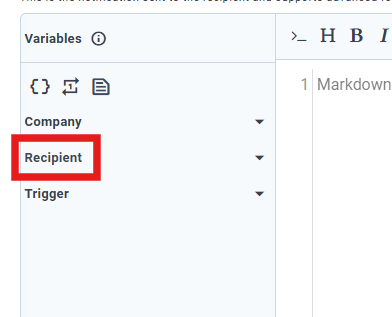
For any new notifications you create, you’ll see updated variables available in the email editor. On the left-hand side, click the variable icon  and look under Recipient.
What’s Changed (Notifications Variables)
We’ve updated how signing and paying variables work in notifications.
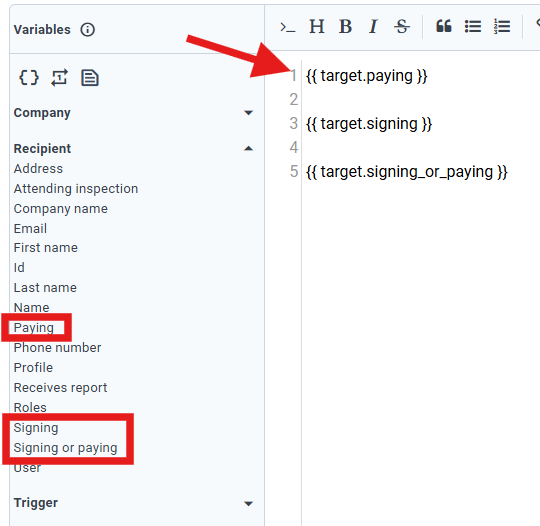
Added:
- signing
- paying
- signing_or_paying
Deprecated:
- signing_and_paying
The previous signing_and_paying variable (note: AND instead of OR) has been deprecated and removed from the variable menu. However, it will continue to function in any existing custom notifications to ensure nothing breaks.
*All built-in notifications have already been updated. Custom notifications will continue to work without any changes.
If you need additional assistance, please submit a request through iGopher for support!