![logo-alt.svg]](https://www.igoclients.com/hubfs/logo-alt.svg)
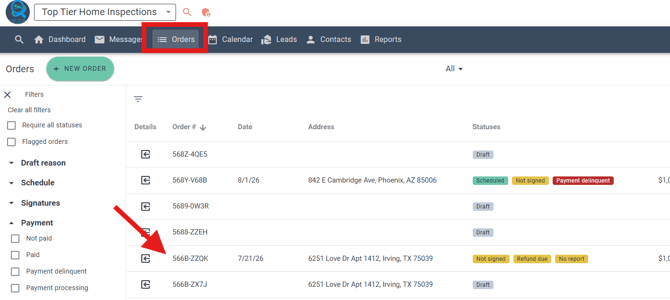
Navigate to Orders and open the order you would like to configure.
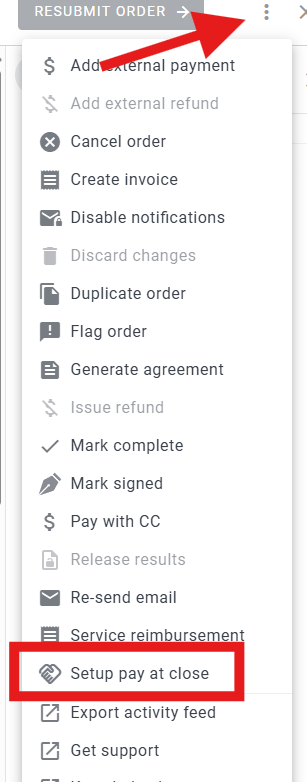
Click the three dots in the upper-right corner and select Set Up Pay at Close.
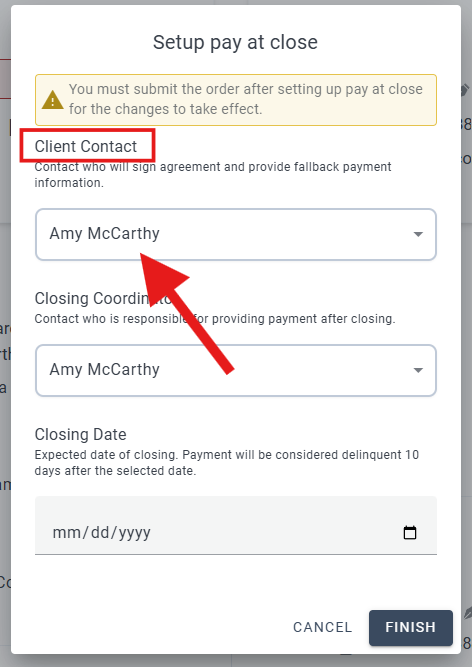
Select the Client Contact. This is the person responsible for signing the agreement and providing a fallback payment method if payment is not received after closing.
Select the Closing Coordinator. This is the person responsible for submitting payment after the property closes.
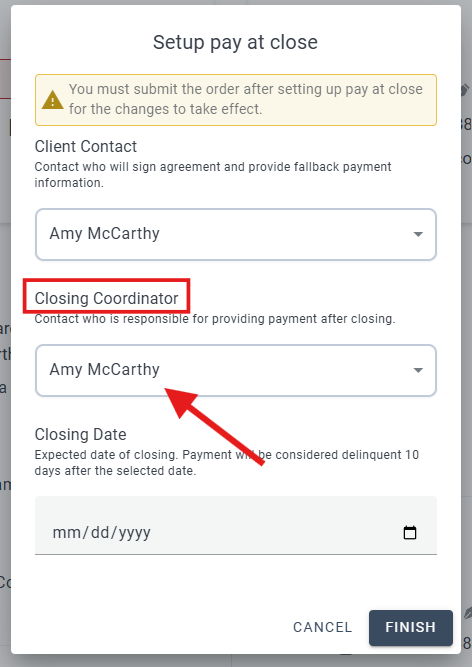
Choose the Closing Date. Keystone will automatically mark the order as Payment Delinquent if payment has not been received within 10 days after the selected closing date.
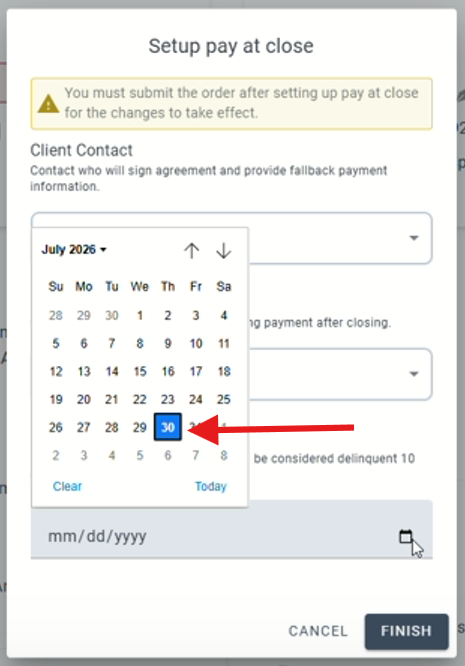
Click Finish.
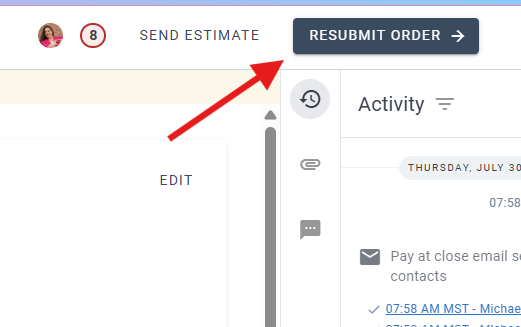
Click Resubmit Order in the upper-right corner. The order must be resubmitted for the Pay at Close changes to take effect.
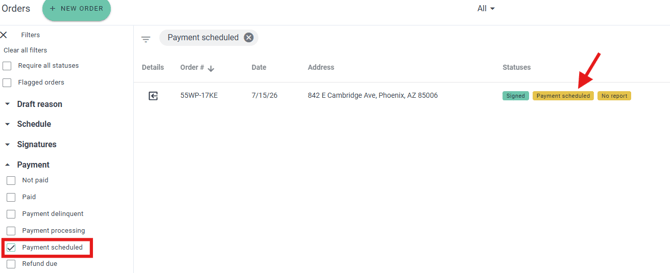
The order will show as not paid until a fallback payment method is saved, at which point it will change to payment scheduled
You can verify that Pay at Close has been enabled by viewing the Activity panel on the right side of the order, where an activity entry will indicate that the order was set to Pay at Close.
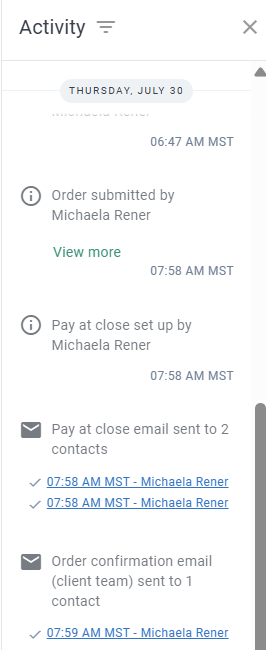
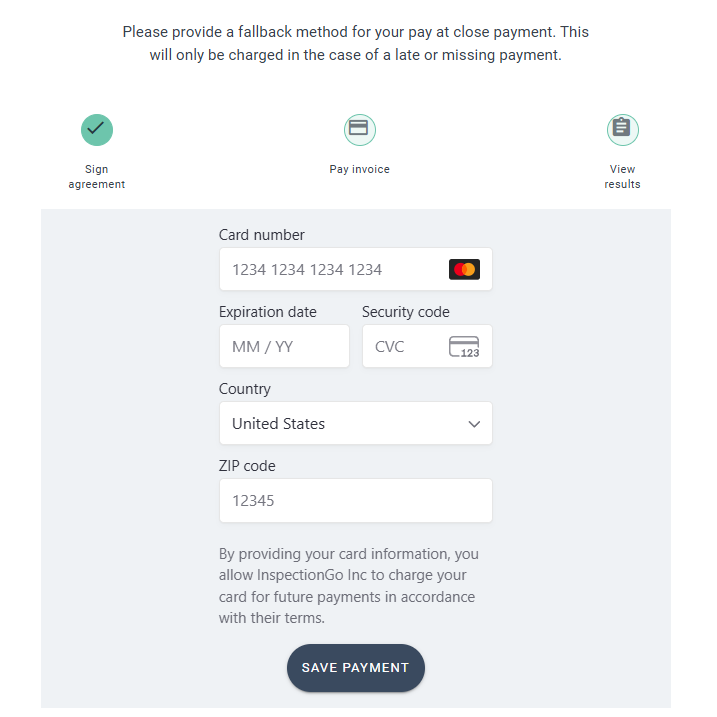
When the client receives their confirmation email and signs the inspection agreement through the Client Portal, they will be prompted to provide a fallback payment method. This payment method will only be charged if payment is late or not received after closing. Since your account is connected with Stripe, the client can securely enter either a credit/debit card.
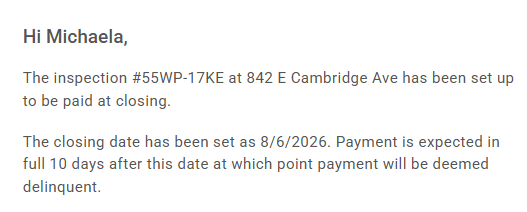
The client will also receive an email informing them that their order has been set up for Pay at Close, showing the scheduled closing date, and explaining that payment is expected within 10 days after closing.
Delinquent Payments
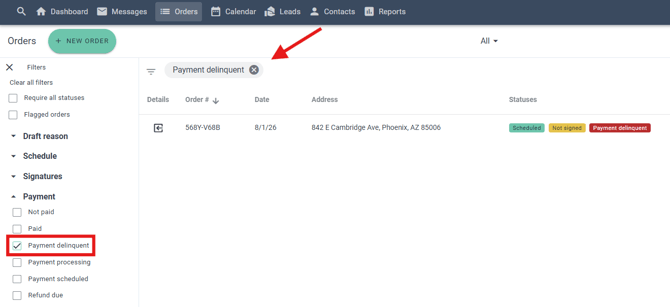
If payment has not been received within 10 days of the selected closing date, Keystone will automatically mark the order as Payment Delinquent.
The order will display a Payment Delinquent status, making it easy to identify that payment is still outstanding.

You can also quickly locate delinquent Pay at Close orders from the Orders page by filtering for Payment Delinquent.
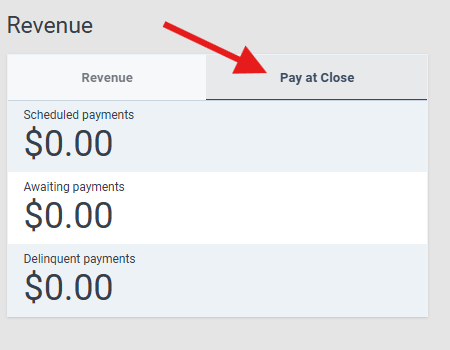
Pay at Close activity is also available on the Dashboard. Select the Pay at Close tab next to the Revenue tab to view.
These metrics are separated into their own dashboard for easier tracking. Pay at Close orders are still included in the Revenue dashboard totals, but the Pay at Close tab provides a dedicated view that isolates only Pay at Close payment activity.
If you need additional assistance, please submit a request through iGopher for support!