![logo-alt.svg]](https://www.igoclients.com/hubfs/logo-alt.svg)
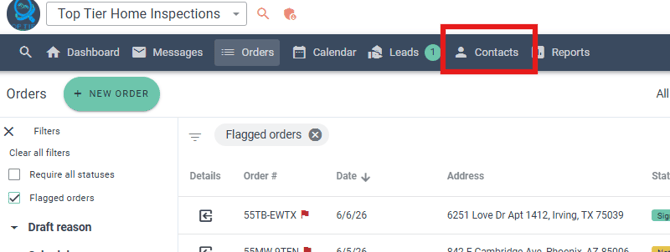
Navigate to Contacts in the blue ribbon and open the agent you would like to set up.
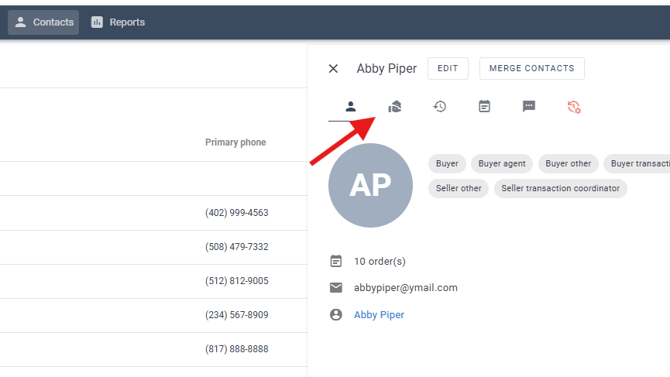
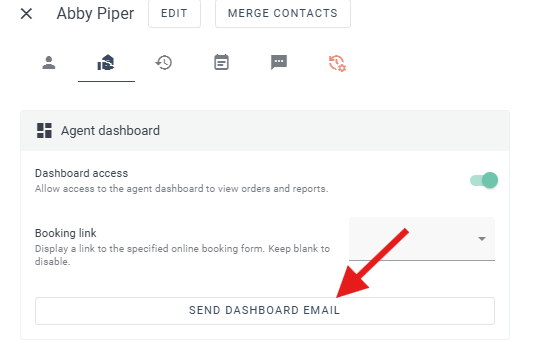
Click the Agent Dashboard icon.
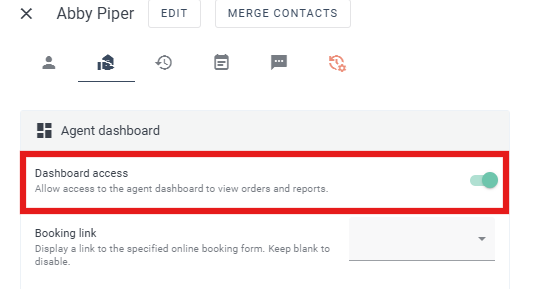
Under Agent Dashboard, you can choose whether the agent will have access to their dashboard.
If dashboard access is enabled, the agent will be able to view their orders and reports and book an inspection with your company.
If you have more than one booking form created, select the Booking Link you would like to assign to the agent.
If you need to create or customize a booking link, please see our help article on customizing your order forms.
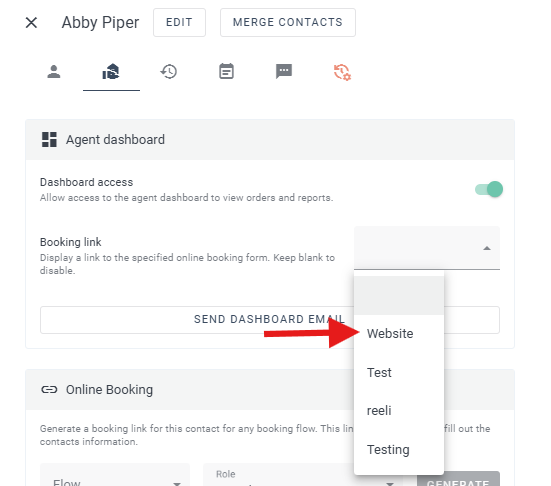
Once the dashboard settings are complete, click Send Dashboard Email to send the agent an invitation to access their dashboard.
Online Booking
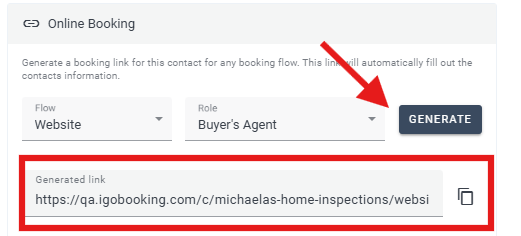
The Online Booking section allows you to create a unique booking link for an agent even if they do not have access to the Agent Dashboard.
If you do not want an agent to have access to their dashboard but still want them to have their own booking link, you can create a specific booking link for that agent here.
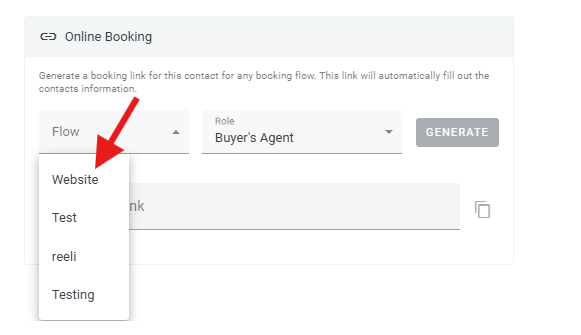
When an agent books an inspection through their Agent Dashboard or unique booking link, Keystone will automatically populate the agent's contact information on the order.
Agent Dashboard Experience
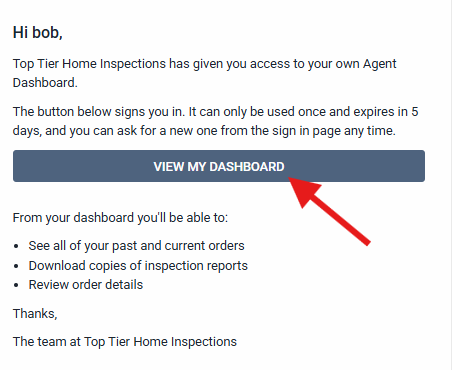
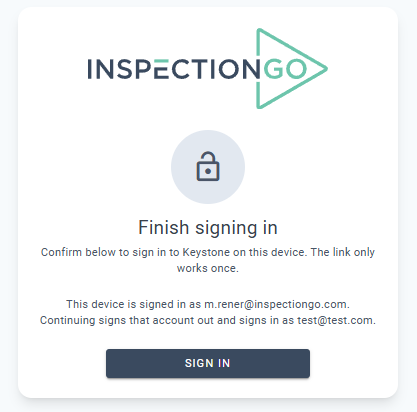
After you send the dashboard invitation, the agent will receive an email inviting them to access their dashboard.
The agent can click View My Dashboard in the email and sign in to access their dashboard.
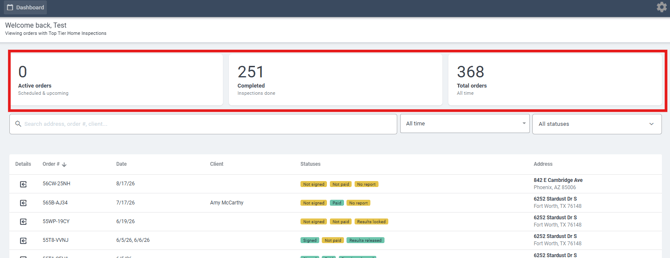
Once signed in, the agent will be able to see their active orders, scheduled and upcoming inspections, completed inspections, and total number of orders.
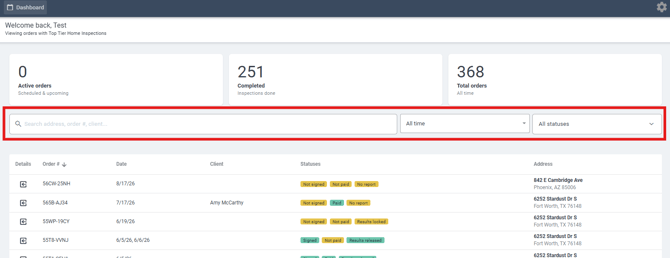
The agent can search for orders by address, order number, or client name. They can also select a specific date and time or filter orders by status.
When the agent opens an order, they will have a read-only view of the information available to them.
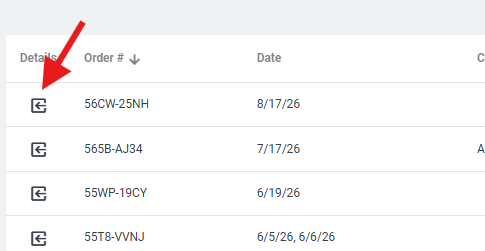
This includes property information, appointment time, and inspection logistics.
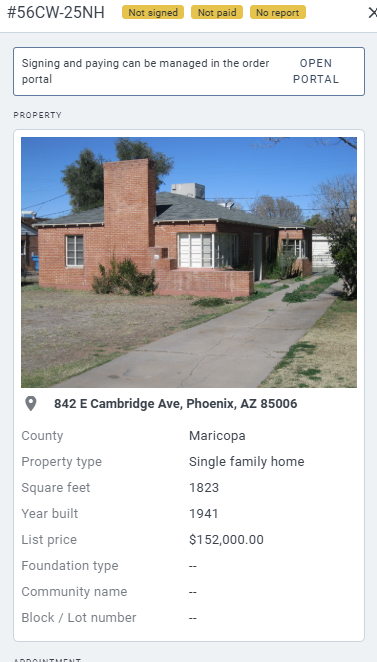
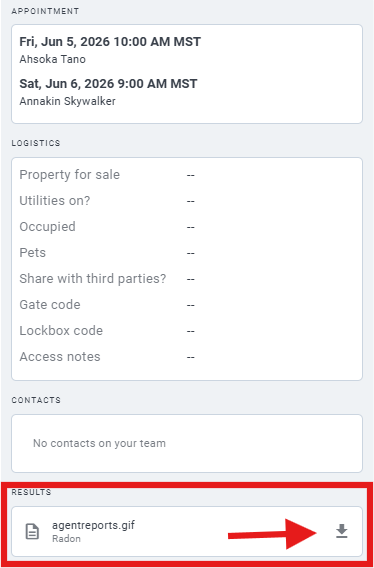
If inspection results have been uploaded, the agent will also see a link to View Results from their Agent Dashboard.
If you need additional assistance, please submit a request through iGopher for support.