![logo-alt.svg]](https://www.igoclients.com/hubfs/logo-alt.svg)
Keystone automatically tracks mileage based on drive time between inspections. In addition to automatic entries, manual entries can be added for additional stops such as lab drop-offs or office visits.
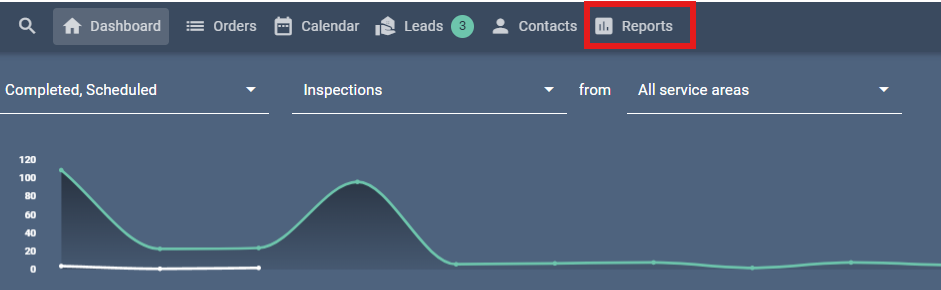
Click on Reports in the top navigation bar..
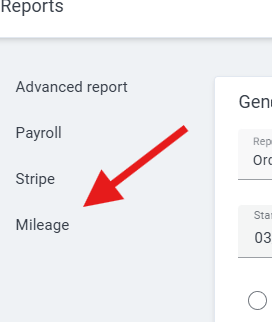
Select Mileage from the left-hand side
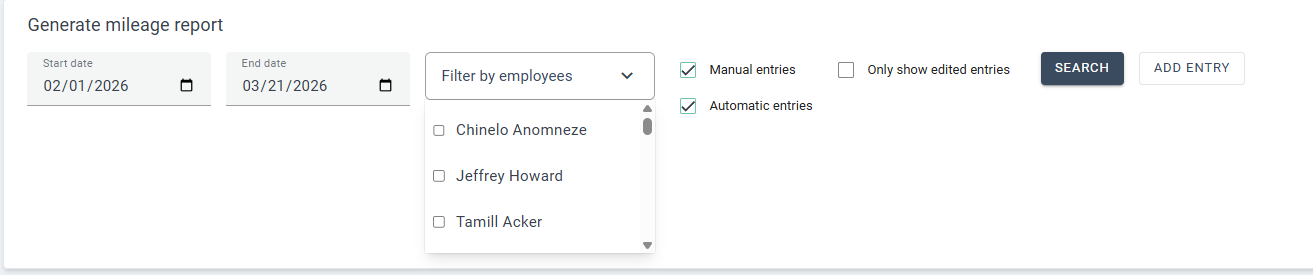
From here, choose the date range you would like to view. You can also filter by specific employees. If no employee filter is applied, the report will display mileage for all employees.
After selecting your filters, click Search to generate the report. The results will display a breakdown of mileage by inspector, along with a total for each.
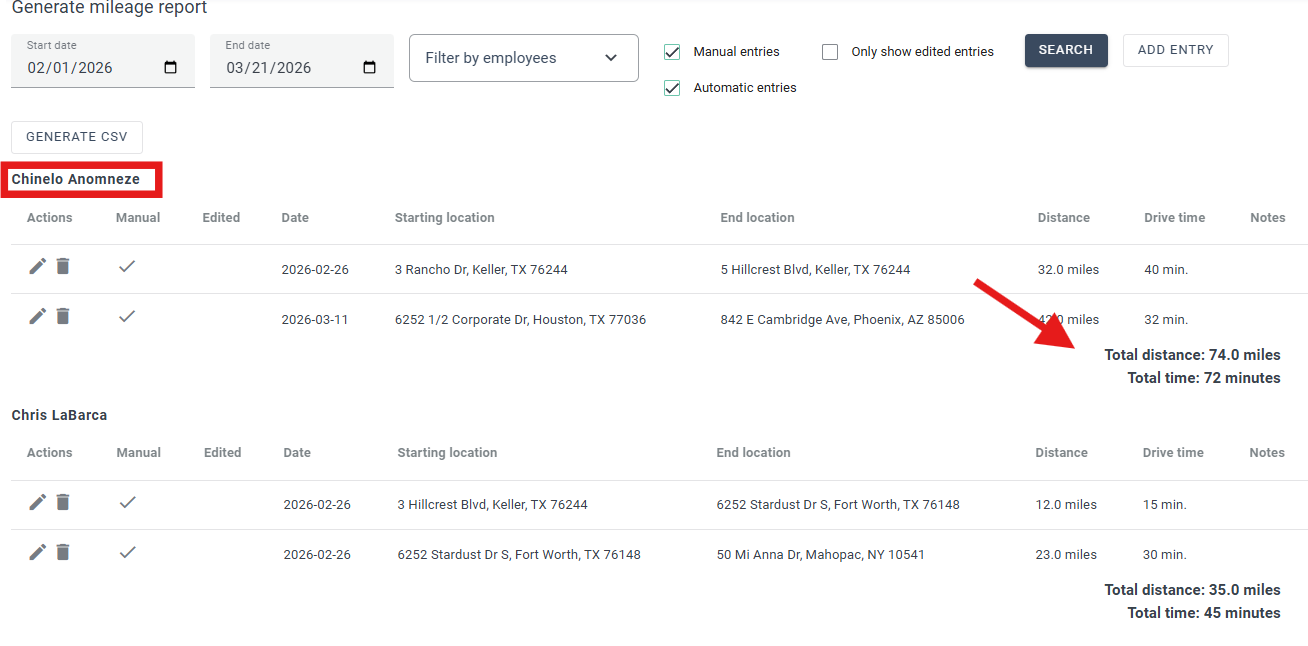
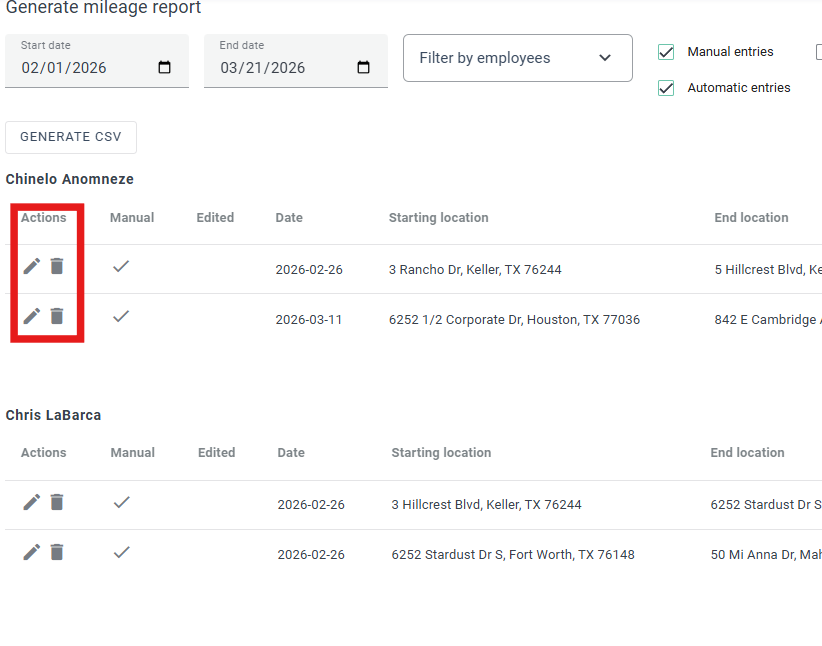
Entries can be edited by selecting the pencil icon next to the record. Addresses, distance, and drive time can be adjusted as needed. Entries can also be removed using the trash icon.
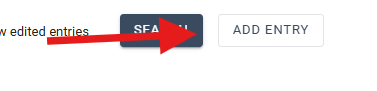
To add a new entry, click Add Entry.
Select the employee, enter the date, and provide the distance, drive time, and addresses. Keystone uses Google to suggest addresses as they are entered.
Once complete, click Save to add the entry to the report.
If you need additional assistance, please submit a request through iGopher for support.