![logo-alt.svg]](https://www.igoclients.com/hubfs/logo-alt.svg)
Click the gear icon in the top right corner of Keystone to access Settings.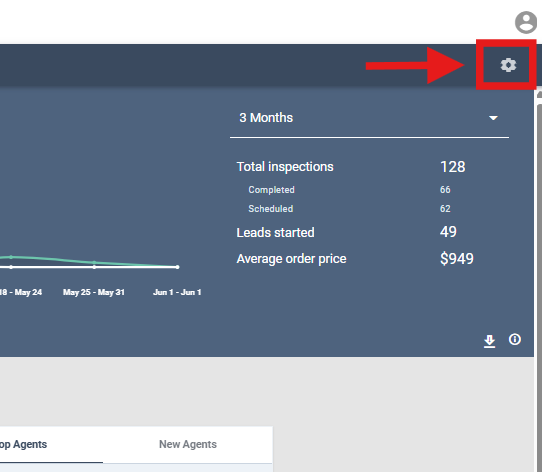
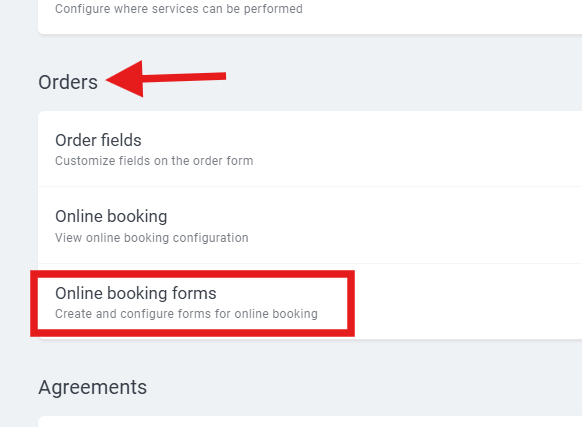
Scroll down to Orders and then click on Online Booking Forms.
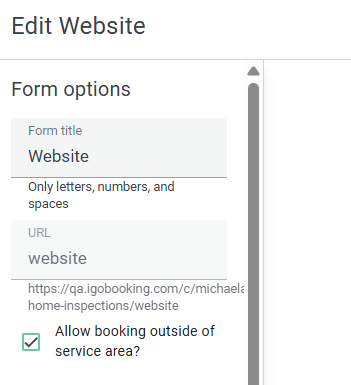
On the left-hand side, you’ll see your Form Title and the URL.
- Important: Once the URL is set and you hit Create Form, it cannot be changed. Make sure it’s exactly how you want it before creating the form.
After creating the form, you can edit the sections on the left-hand side:
- Drag and drop sections to reorder them.
- Delete sections you don’t need.
- Add new sections as needed.
Each section has a customization panel on the far right-hand side where you can:
- Make items required or optional
- Change verbiage
- Edit the text displayed on that page
In the middle of the form editor, you’ll always see a live preview of your booking flow. Use this to check changes as you make them.
Tips & Tricks
- Always create a new booking flow to test changes before making them live, this keeps your default booking form active and prevents disruptions.
- Preview your form frequently while editing to see exactly what your clients will experience.
- Double-check the URL before hitting Create Form - once it’s set, it cannot be changed.
- Use drag-and-drop to reorder sections and easily add or delete sections as needed.