![logo-alt.svg]](https://www.igoclients.com/hubfs/logo-alt.svg)
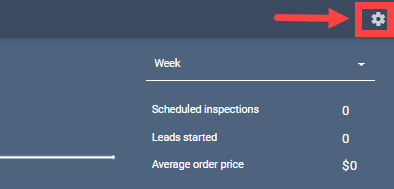
To add custom fields to a service in Keystone, click the Gear Icon in the top right-hand corner to access Settings.
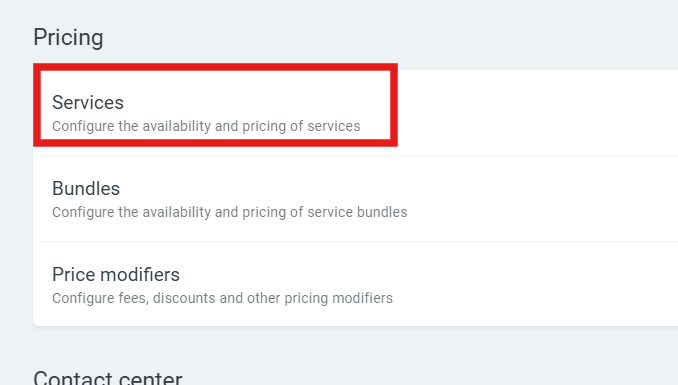
Scroll down to Pricing and select Services
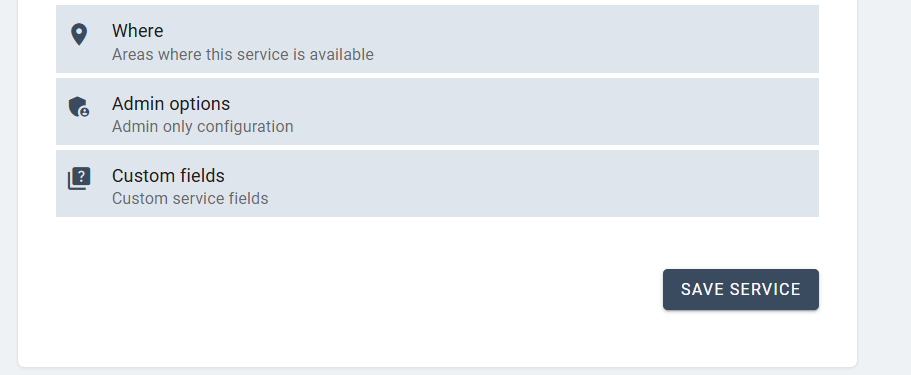
Choose the service you would like to edit. Scroll to the bottom of the service page to locate the Custom Fields section.
Custom fields allow you to collect additional service-specific information. Available field types include text, date, and number. Each field can be given a name and optional helper text.
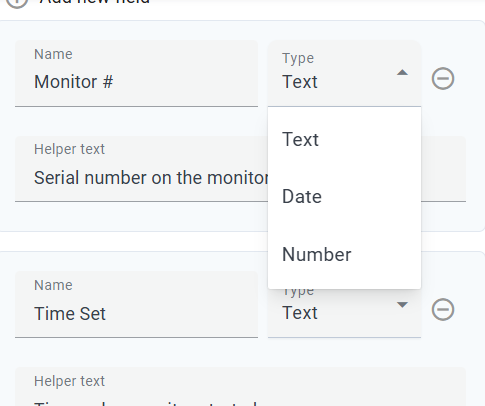
After creating the field, click Save.
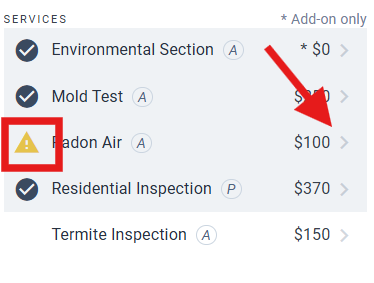
Once saved, the custom field will appear within the order. Navigate to Orders and open an existing order or create a new one. After selecting the service, a warning icon may appear indicating missing information. Expanding the service will display the custom field for entry.
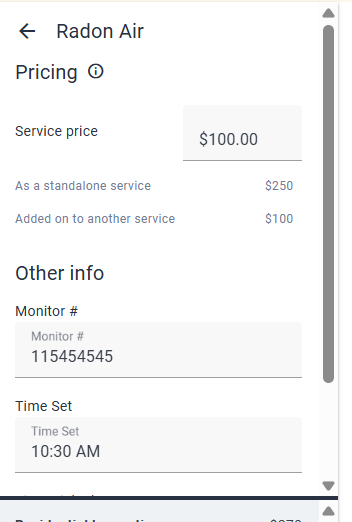
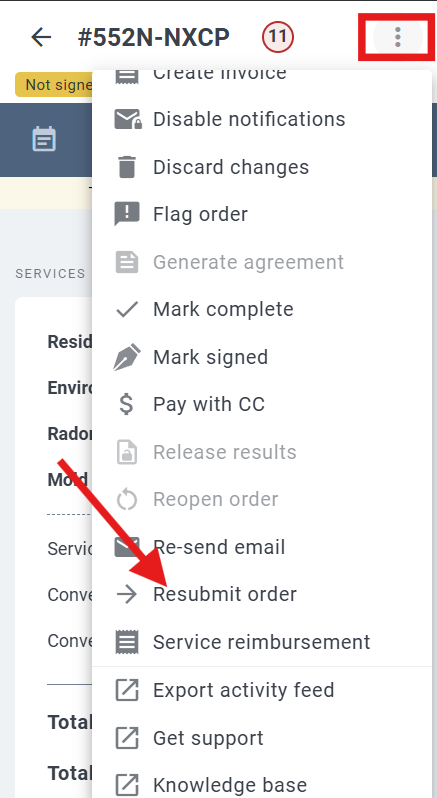
After entering the information, click Review and resubmit the order to save changes. Updating a custom field does not automatically trigger email notifications, and any triggered notifications can be unchecked before sending.
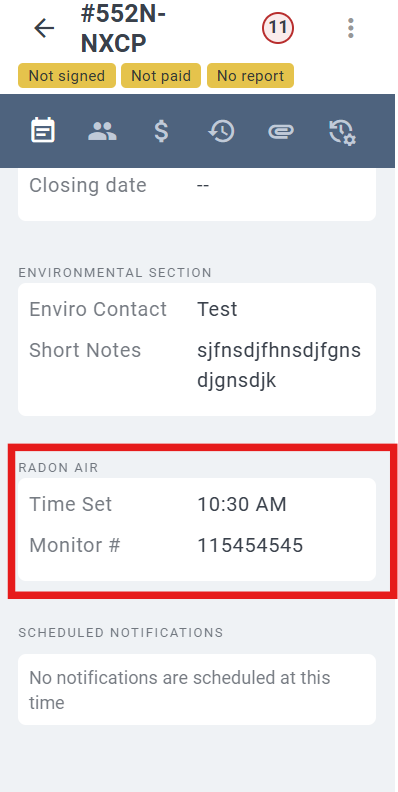
The entered information will appear at the bottom of the order under the corresponding service section.
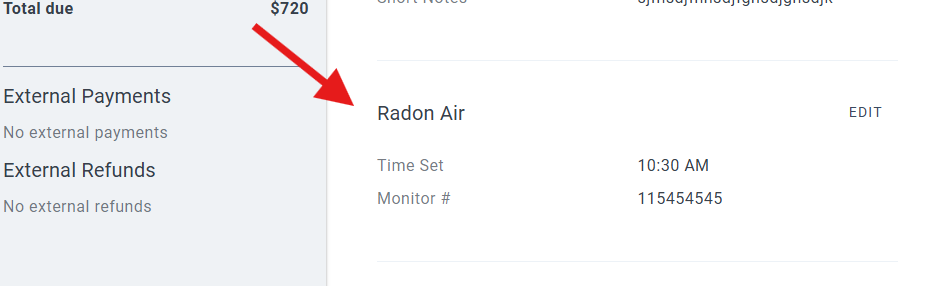
Custom fields can also be viewed and updated by inspectors in the field.
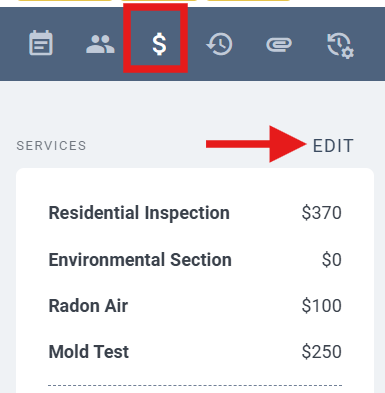
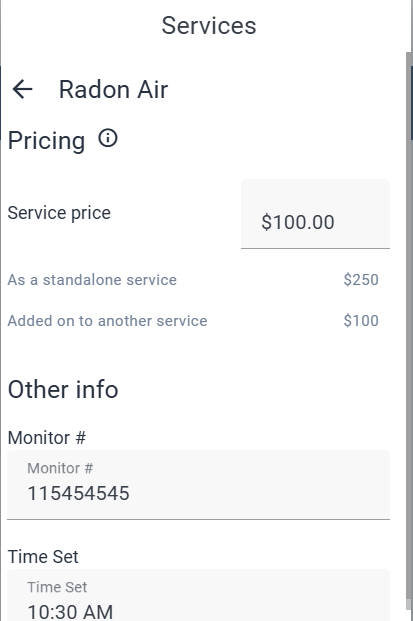
From the order, select the Services icon, choose the service, and click Edit.
Expand the service to enter the required information. 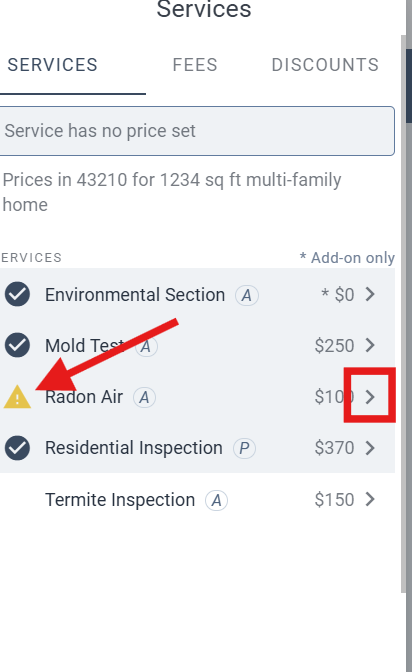
Resubmit the order from the options menu.
If you need additional assistance, please submit a request through iGopher for support.