![logo-alt.svg]](https://www.igoclients.com/hubfs/logo-alt.svg)
By default, Keystone’s built-in Results Ready notification is configured to send reports only to client team contacts (clients and agents). If you need to send the report to someone outside of that group (e.g., third parties, additional stakeholders), you must create a custom notification.
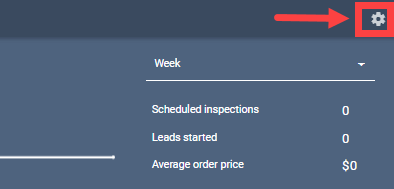
Click the Gear Icon in the top-right corner to open Settings
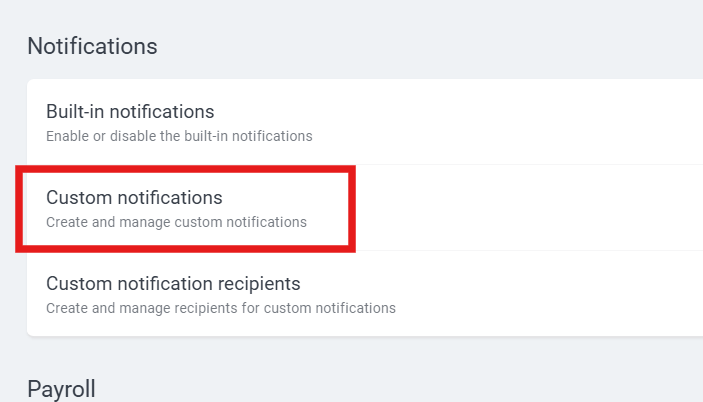
Scroll down to notifications and click Custom Notifications
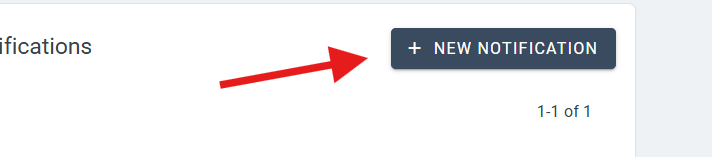
Select + New Notification in the top-right corner
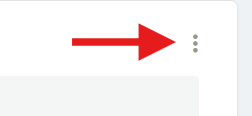
Click the three dots menu (template options)
Load the Results Ready Email template and click Select Rule
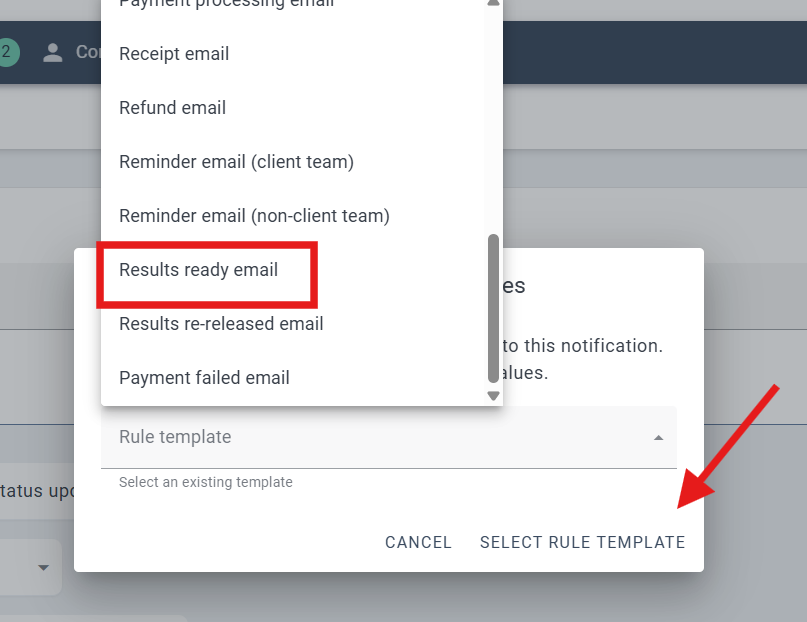
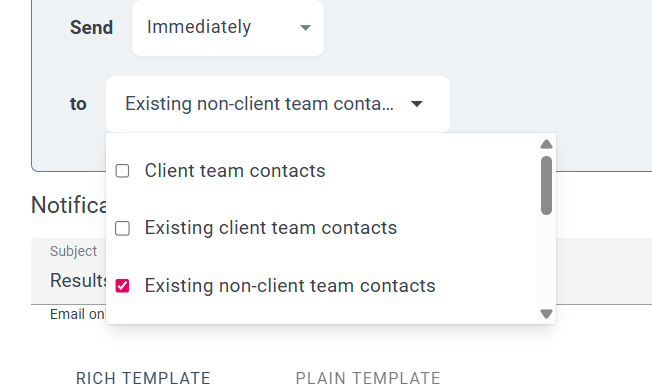
In the (To:) section: Change from Client Team Contacts to Non-Client Team Contacts (or desired recipient group)
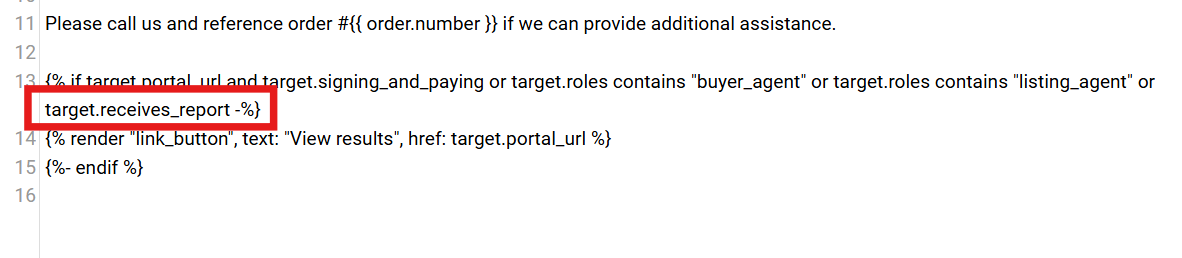
The template already includes the variable:
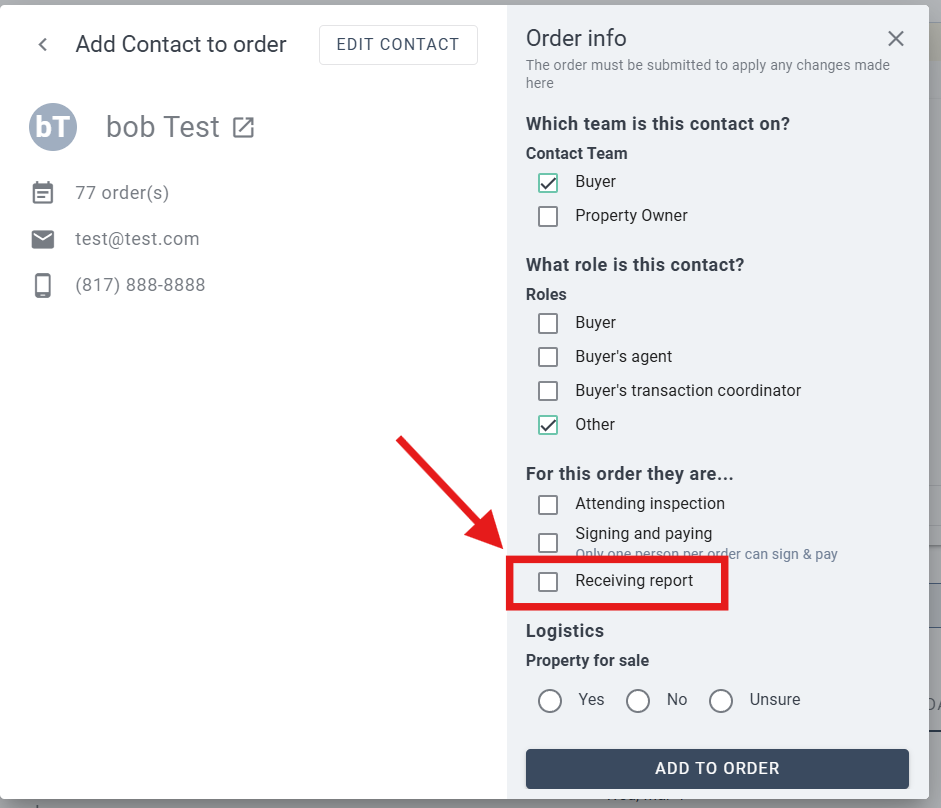
target.receives_report
This ensures the recipient can access the inspection report when sent.
Click Save Notification Rule
Navigate to Orders from the top menu

Go to the Contacts tab to enable “Receives Report”
If you need additional assistance, please submit a request through iGopher for support.