![logo-alt.svg]](https://www.igoclients.com/hubfs/logo-alt.svg)
Receiving Your Confirmation Email
After your order is submitted in Keystone, you will receive a confirmation email. This email may include your inspection details and information from the inspection company.

Accessing the Client Portal
Click the Sign and Pay button in the email to access your client portal. The portal allows you to review your order details, sign your agreement, make a payment, and view your inspection report.

Viewing Your Order Details
On the left-hand side of the client portal, you will see the inspection company's logo, a map or photo of the inspection address, and an order summary. The order summary displays the inspection address, date and time, services, subtotal, any applicable convenience fee, and the total amount due.

Understanding the Convenience Fee
If the inspection company uses Stripe for payments, a convenience fee may be visible. Keystone includes a helpful tooltip explaining the fee and noting that you may receive a discount when using ACH, cash, or check payments, depending on the payment options offered by the inspection company.

Viewing the "My Team" Section
Below the order summary, the My Team section lists anyone associated with the order, including the buyer’s agent if applicable.

Signing the Agreement
To proceed, you will be prompted to provide your first name, last name, phone number, and billing address. If this information was already provided when your order was submitted, it will pre-populate. After reviewing and agreeing to the terms and conditions, click the blue Sign button. (Keystone uses Keystone Sign, an in-house agreement signing feature.)

Once you click the Sign button, the agreement will load instantly. You can review the agreement and then click Looks Good to proceed.

You can choose to type your name and select a font or sign using your finger or mouse if you are on a mobile device or tablet.

Making a Payment
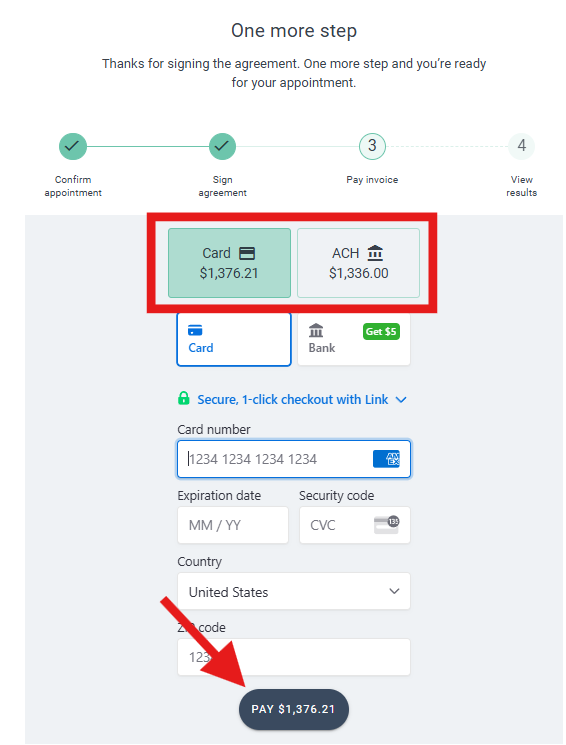
After signing, you will be directed to the payment page. You can choose to pay by credit card or ACH. (For other payment methods like cash, check, or money order, contact the inspection company's office.)
Accessing the Signed Agreement
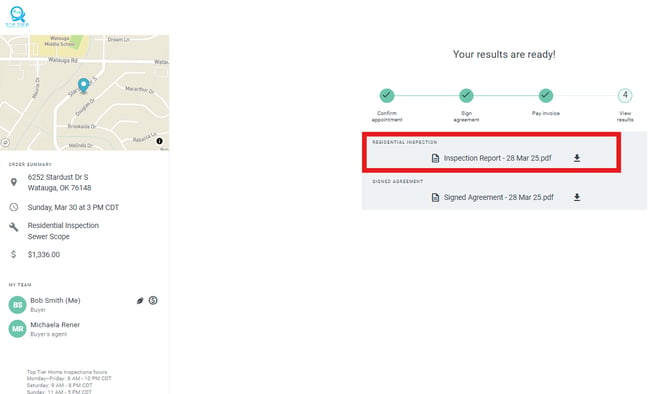
Once your payment is completed, the signed agreement will be available in your client portal. You can view and download it as needed.

Receiving Report Results
When your inspection results are ready, you will receive a notification email. This email is also customizable by the inspection company and includes a View Results button.

Viewing the Report
Clicking View Results will direct you back to the client portal. (If your agreement has not been signed or payment has not been completed, you will be unable to view the report. After completing these steps, your report will be accessible and available for download within the portal.)
That is your experience using the client portal within Keystone.
If you need additional assistance, please submit a request through iGopher for support.